
Help
Quick guide to the buttons, shortcuts and annotation tools of the SimuFísica simulators.
Standard Simulator Gestures
Click and touch gestures available directly on the simulation area (canvas), valid in most simulators.
Starts or pauses the simulation. A quick click (or tap, on mobile/tablet) on the canvas.
Restarts the simulation, returning to the initial conditions. On desktop, click while holding Shift; on mobile/tablet, tap with two fingers at the same time.
Moves an interactive object in the simulator, when available — without starting or pausing the simulation.
Opens the color palette of the selected annotation tool, with 4 options available.
Simulator Control Bar
Fixed buttons in the bottom menu, present in every simulator.
Starts and pauses the simulation.
Restarts the simulation, keeping the current parameters and returning to the initial conditions.
Opens a menu with predefined settings and specific simulation cases.
Opens options to display dynamic graphs of the system's variables.
Clears trajectories or sketches drawn on the simulation screen.
Increases the simulation's calculation and integration speed.
Centers the objects in the simulator's main coordinate system.
Exports the generated dynamic data in .csv or .txt format.
Returns to the main page of the SimuFísica platform.
Completely resets all variables, parameters and initial state to factory defaults.
Switches the display to fullscreen mode.
Generates an interactive exercise or problem associated with the current simulator.
Opens the window with physical explanations, equations, citations and simulator version.
Opens the panel to save, load, rename or delete settings saved in the cloud.
Annotation Tools in the Simulator
Floating layers menu for drawing and annotating directly on the simulation.
Main button that expands and collapses the drawing tools menu.
Allows manual sketches on the screen.
Inserts annotation text boxes.
Draws a straight line between two dragged points.
Draws a pointed arrow, useful for indicating physical vectors.
Draws a rectangle delimiting a region of the screen.
Draws a circle from the center out to the dragged radius.
Draws a dotted line, useful for indicating trajectories or auxiliary references.
Marks a single point on the screen with one tap, without needing to drag.
Erases a specific stroke or shape when you click or drag over it.
Removes all annotations drawn on the simulation at once.
Right-click (or long-press on mobile/tablet) a tool to choose between 4 colors.
Parameter Panel Features
Accessibility and support features available in the side panel of each simulator.
Adjusts the font size and controls of the side parameter panel.
Displays a quick explanation of the corresponding physical quantity on hover or tap.
Problem Generator
Several simulators generate unique exercises, with varied values and scenarios, directly in the simulator panel — via the Problem button in the control bar.
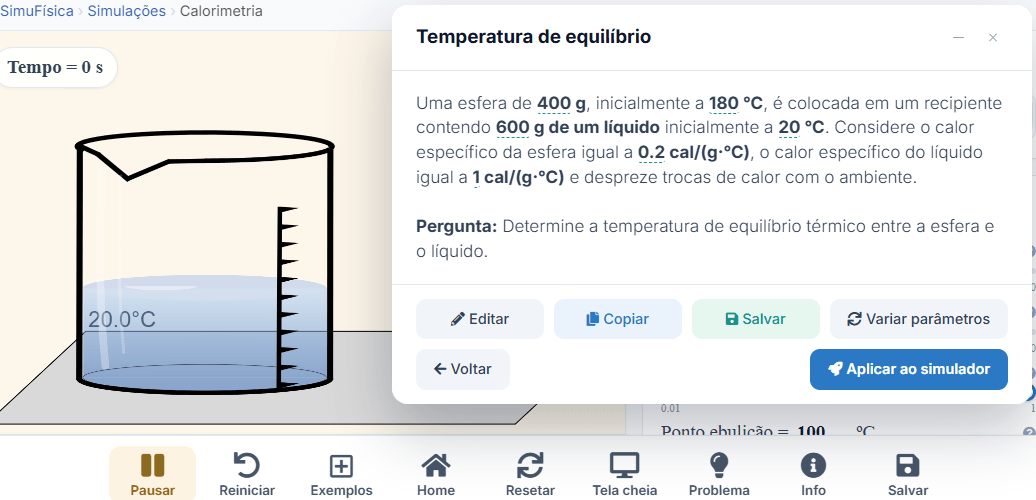
Choose the mode, the quantity to calculate, and the simulator features that should appear in the statement.
Creates a new statement, with values randomly drawn within the chosen settings.
Manually adjusts the text of the generated statement.
Copies the problem statement to the clipboard.
Generates a new set of values while keeping the same statement and configuration.
Automatically configures the simulator parameters with the values of the generated problem.
Simulation Saving
While logged in, you can save the initial conditions and configured parameters of each simulation directly to your account, via the Save button in the control bar.
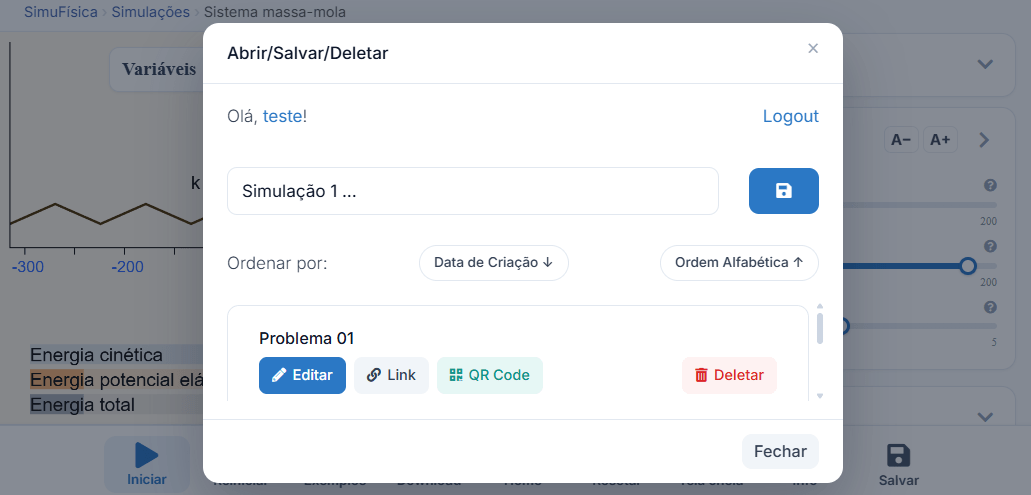
Give it a name and save the current parameters to the cloud, or load a previously saved configuration back into the simulator.
Generates a shareable link that opens the simulation with the saved parameters already applied.
Generates a QR Code to quickly open the saved simulation on another device.
Permanently removes a saved configuration from your account.
Image Capture and Video Recording
Save an image or record a video of the simulation via the More () button in the control bar. The file is downloaded straight to your device.
Saves a high-resolution PNG image of the simulation, including the annotations and value cards on top of it. On mobile/tablet, it opens the share option.
Records the simulation as MP4 (or WebM, depending on the browser), for up to 10 minutes. While recording, the item becomes Stop recording, showing the elapsed time. Available on computers only.
Captures or records only the simulation area, without the control bar and panels. No permission is required. On mobile/tablet, images are always taken this way.
Captures or records the entire browser tab, with panels, graphs and cards, just as it appears on screen. The browser asks for permission each time. For video, keep the tab audio option checked to include the simulation's sound.
Starts and stops whole-page recording without opening the menu (⌥ + R on Mac). Ideal for recording promotional videos or lessons without external software.
Recording pauses by itself when you switch tabs. In whole-page mode, it also pauses while the More menu is open, so the menu doesn't show up in the video.